

Inventory change history: who changed the stock, when, and whether it went through
· 4 minute read
There are fewer units than you remember, and it isn’t clear whether that was a sale on the website, an update from Shopify, or a change you made by hand and forgot. In the activity log every change is a line, with what it was before and after, who or what made it, and whether the store actually took it.
What goes into the log
Open it from “Activity log” in the menu. Each line is one action in one store:
- Stock sent to a store: a sale in another store that the sync carried over, or a quantity set by hand in the editor.
- A product added to a store from here, or given the variations it was missing there.
- A product deleted from a store from here, and a product deleted in the store itself, found when the system read the store.
- SKUs and descriptions given to products from here.
- A product hidden in all its stores, or shown in them again.
- On Wolt: a size opened or closed, an item hidden or shown, and a Wolt order that took stock from the sites.
- An order moved to another status or deleted from here, once the Orders screen is turned on.
A sale on the website itself isn’t a line of its own. What’s logged is what the sync sent to the other stores because of it. While sync is off, a stock change made in the store itself isn’t sent anywhere, and it doesn’t show up in the log either.
What each line says
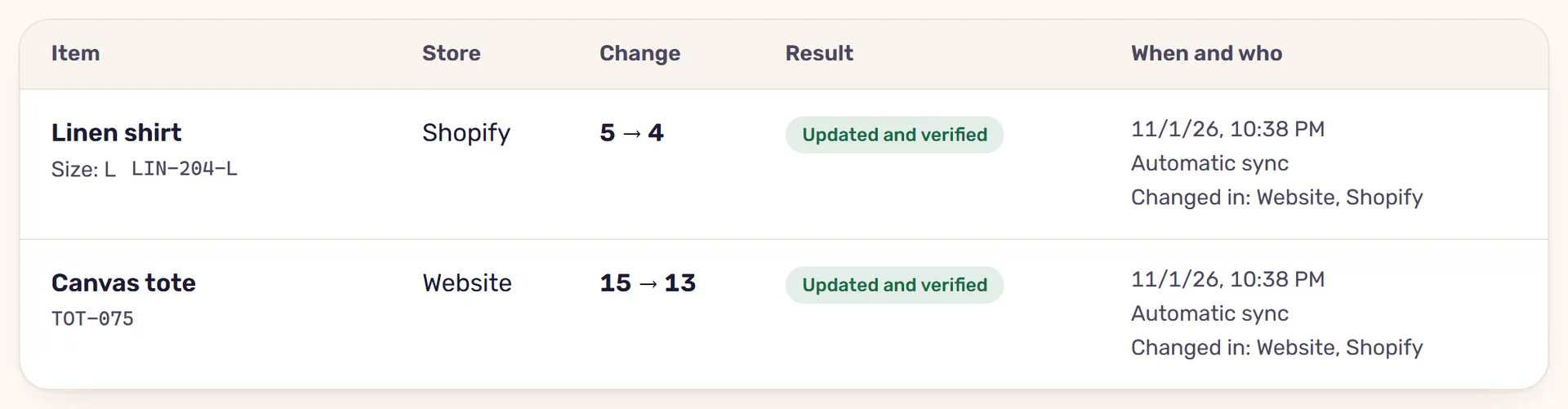
Each line has five columns: “Item”, “Store”, “Change”, “Result” and “When and who”. For stock, “Change” shows what the store had before and what was sent to it, such as 4 → 3, or “Out” and “No limit” when there’s no count. “When and who” says when it happened, and who or what made it:
- The name of whoever saved it, for a change made by hand.
- “Automatic sync”, with “Changed in:” and the store where the sale or change happened.
- “Sale”, with the venue and the order number, when a Wolt order took stock from the sites.
- “Availability update”, when a size was opened or closed on Wolt to follow the stock on the sites.
- “Found when reading the store”, when someone deleted a product directly in the store. Such a line also says “The product was deleted in the store itself, not from here.”
Went through, or only sent
On the sites, StoreDuet reads the store again after every change, and the change counts as done only if the store gives back exactly what was asked for. “Result” shows how that check came out. “Updated and verified” means the store was read again and has what was sent. For products it’s “Added and verified” or “Deleted and verified”.
“Sent, not verified” means the store accepted the change, but we couldn’t read it back from the store. “Failed” comes with the reason under it, such as the store refusing the update, or the value read from it being different from what was asked for. That way an update that didn’t go through shows up in the log before it turns into an order for something you no longer have. More on preventing that in the article on overselling.
Wolt has no way to read back what a venue was told, so “Availability update” lines stay “Sent, not verified”.
When something fails
The reason is written under the result. From there, it depends on the case:
- You saved in the editor (“Edit” next to the product, on the Inventory screen) and part of it didn’t go through: the editor says “Some changes didn’t go through” and gives the reason next to each store. Once that’s handled, click “Try again” in the same editor, and it resends only what didn’t go through.
- “Sent, not verified”: click “Refresh from stores” on the Inventory screen and see what the store has now.
- The store is marked “Needs attention”: its card on the Stores screen says what’s wrong. Once it’s fixed, choose “Check connection” in the card’s menu.
30 days, with the names as they were
The log keeps the last 30 days, and “Older” under the table takes you further back. Each line keeps its own copy of the product’s and the store’s names as they were when the change was made. So it still reads right after the product is renamed or deleted, or after the store is disconnected.
And if a product is sold twice anyway, the log shows every update sent to the stores and when, so you can decide whether one of them needs a safety buffer.
Read next
· 4 minute read
Overselling: why you sell a product that has run out, and how to prevent it
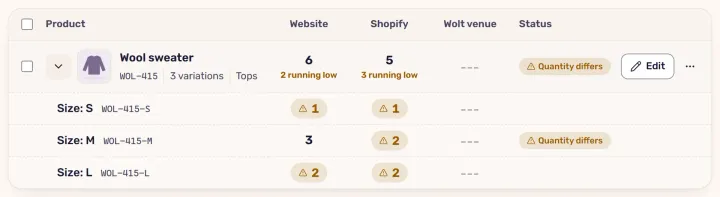
Overselling happens when a store doesn’t know a product ran out elsewhere. Why, and how StoreDuet closes the gap: sync, a safety buffer and checked updates.
· 3 minute read
A safety buffer for your stock: what it is, and when it’s worth it
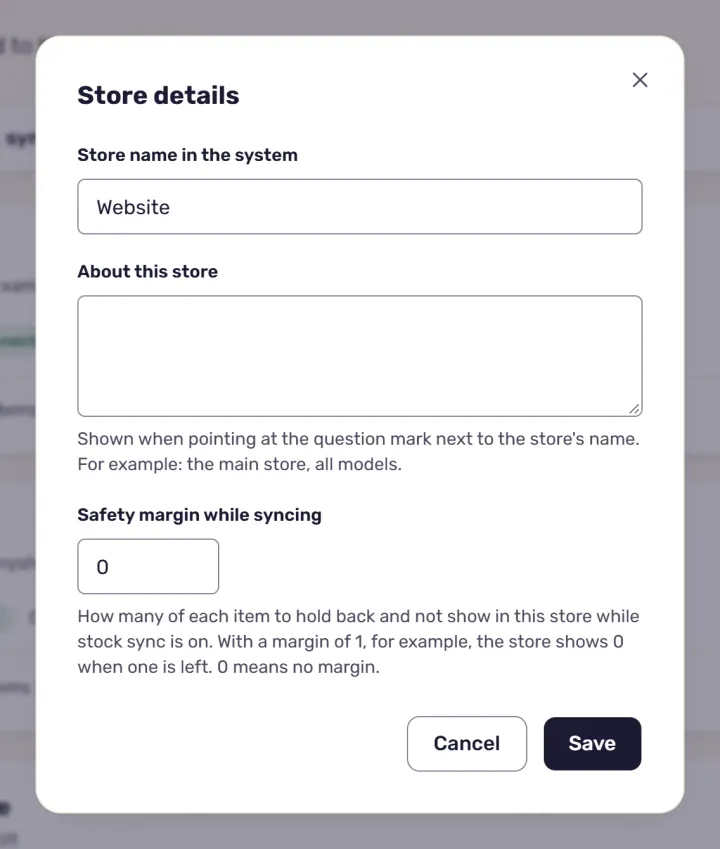
A safety buffer holds a few units back and doesn’t show them in the store, so the last unit isn’t sold twice. How it works in StoreDuet, and how many to set.