

Overselling: why you sell a product that has run out, and how to prevent it
· 4 minute read
Overselling is an order for a product you no longer have in stock. The customer has paid, the product isn’t there, and someone has to call, apologize and refund the money. When you sell on one site it’s rare. When you sell the same products in several stores, it happens every time the stores don’t know about each other.
Where it comes from
- Each store keeps its own stock, and a sale in one doesn’t lower the quantity in the other.
- A manual update that comes late, or never comes at all.
- The last unit sells in two stores a few minutes apart.
- A different quantity in each store, so one of them shows more than you have in the warehouse.
Sync closes most of the gap
When the stores are synced, a sale in one reaches the others within about a minute. “Out of stock” carries over too: a store that marks a product out of stock and a store that only counts a quantity and reaches zero are treated as the same thing, and the system sees no difference between them. We cover how this works in practice in the article on syncing stock between WooCommerce and Shopify.
If you also have a Wolt venue, an order accepted there lowers the stock on your sites, and a cancellation returns it. A size that runs out on the sites closes on the venue within about 15 minutes.
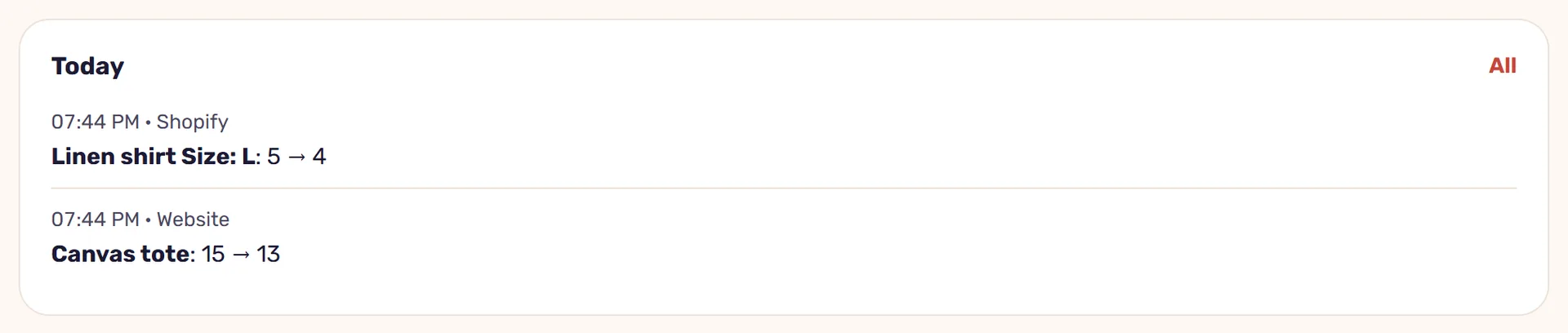
What’s left: the minute between two sales
A sync of about a minute narrows the window, but doesn’t close it entirely. When one or two units are left and two stores sell in the same minute, you can still sell more than you have. That’s what a safety buffer is for: a few units the store doesn’t show, so the last unit stays held back. When it pays off and how to choose its size is in the article on safety buffers.
Quantities that don’t match
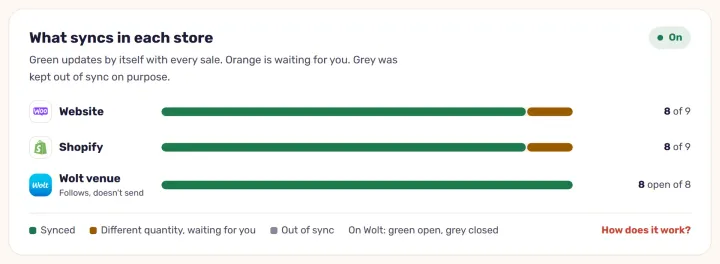
The quietest source of overselling is a quantity that was wrong from the start. StoreDuet doesn’t guess: an item whose quantity differs between the stores is marked “Quantity differs”, counted in the “Waiting to be lined up” tile on the Overview screen, and isn’t synced until you set one quantity for it.
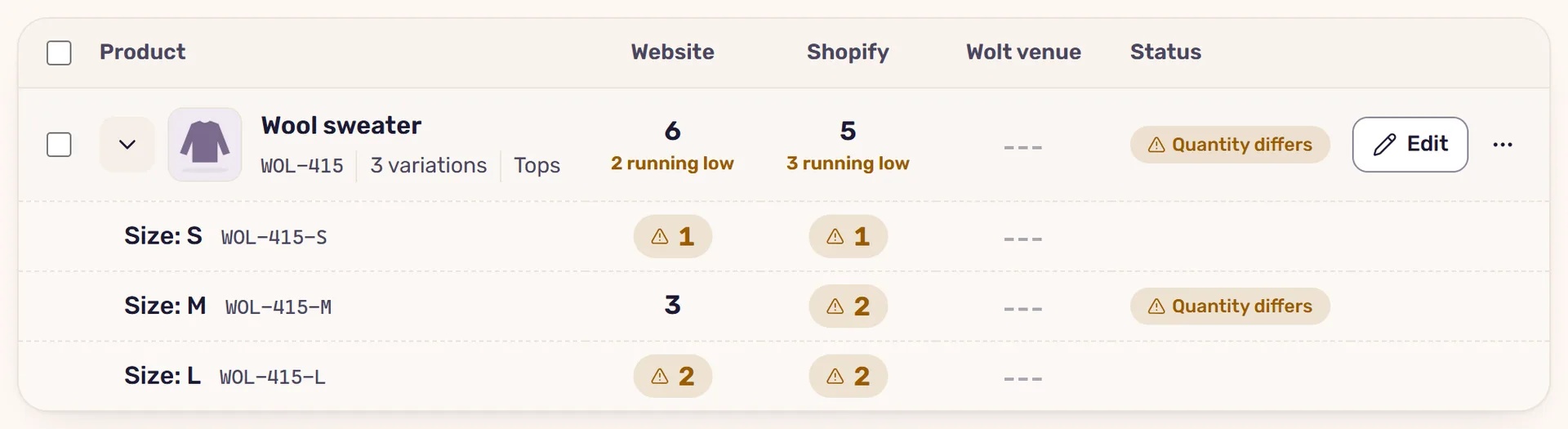
Updates are checked after they’re sent
Sending a quantity to a store is half the job. The other half is making sure it took. Every update the system sends is read back from the store, and counts as done only if the store returns exactly what we asked for. An update that didn’t go through appears in the activity log with the reason, so you see it before it turns into a problem order.
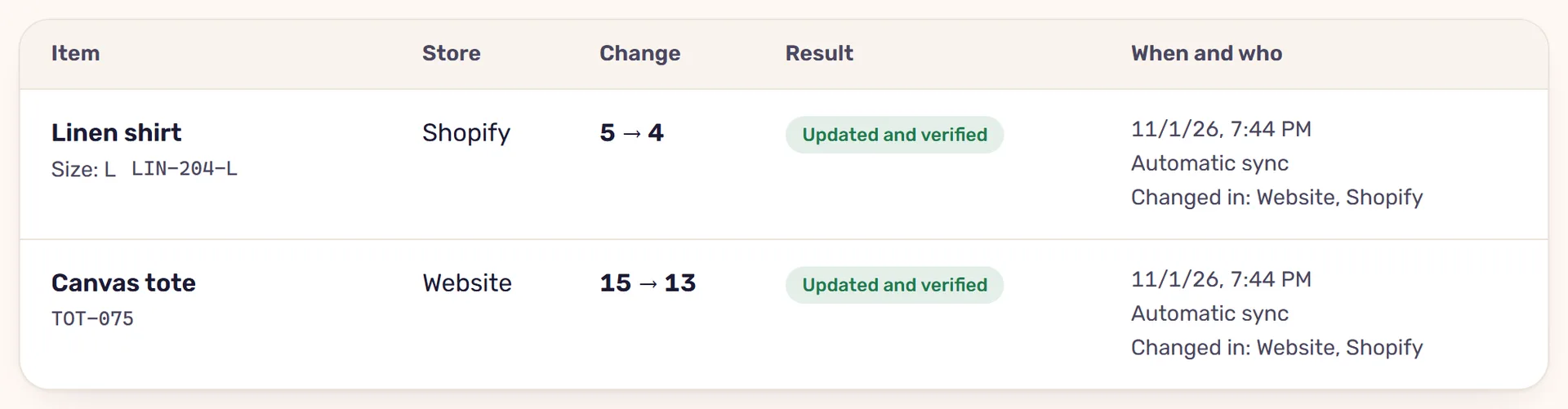
A short checklist against overselling
- Connect every place that sells from the same stock, including a Wolt venue.
- Make sure every product and every variation has a SKU.
- Settle quantity differences before you turn the sync on.
- Give a safety buffer to the store where orders come in fast.
- Look at the activity log when something seems wrong.
Read next
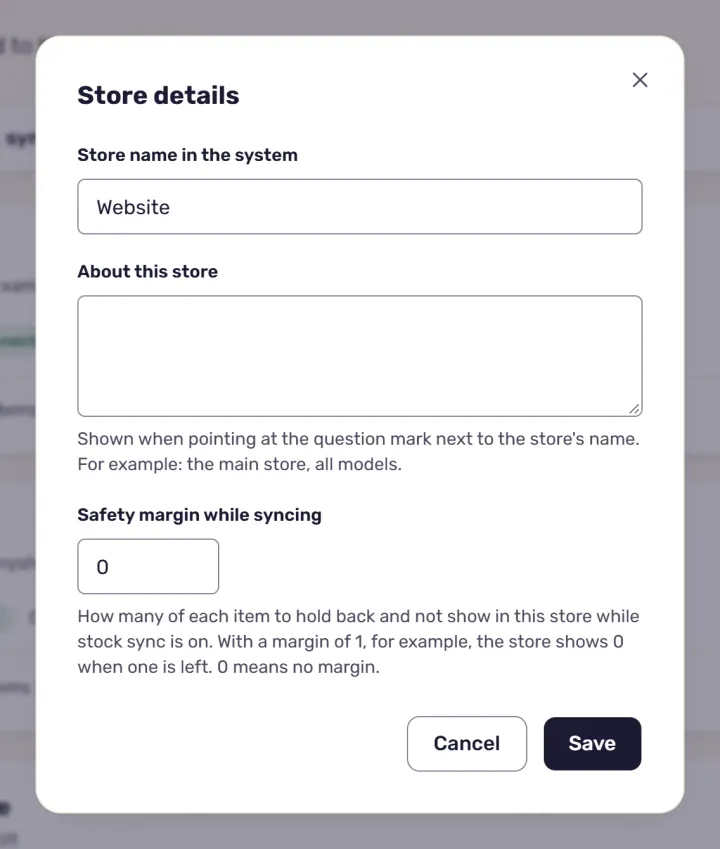
· 3 minute read
A safety buffer for your stock: what it is, and when it’s worth it
A safety buffer holds a few units back and doesn’t show them in the store, so the last unit isn’t sold twice. How it works in StoreDuet, and how many to set.
· 4 minute read
Syncing stock between WooCommerce and Shopify: how it works
What happens when one product sells in two stores, what the sync carries and what it doesn’t, and how StoreDuet keeps one quantity in both within a minute.