

Syncing stock between WooCommerce and Shopify: how it works
· 4 minute read
When the same product sells on a WooCommerce site and in a Shopify store, each store knows only about its own sales. A shirt sells on the site, and Shopify still shows it in stock until someone goes in and updates it by hand. Stock sync closes that gap: a sale in one store lowers the quantity in the other as well.
Why updating by hand doesn’t hold up
With a few orders a day you can manage: you go into the other store and lower the quantity. The trouble starts when orders come in during the evening, over the weekend or in the middle of a sale, and nobody is there to update. Every minute the stores are out of sync is a minute in which you can sell a product that has already run out. We wrote about that scenario, and how to avoid it, in the article on overselling.
What the sync carries, and what it doesn’t
Only stock: a quantity, “No limit” and “Out of stock”. Prices, names, descriptions and pictures stay as they are in each store. So you can sell the same product at a different price in each store, with a description that suits each one’s audience, and it still has a single quantity.
How it works in StoreDuet
You connect both stores by approving the connection inside each store, without handing over a password. The system reads the products from both and joins the same product by its SKU on its own. You turn the sync on, and from then on, every minute, the system checks what changed in each store and carries the change to the other.
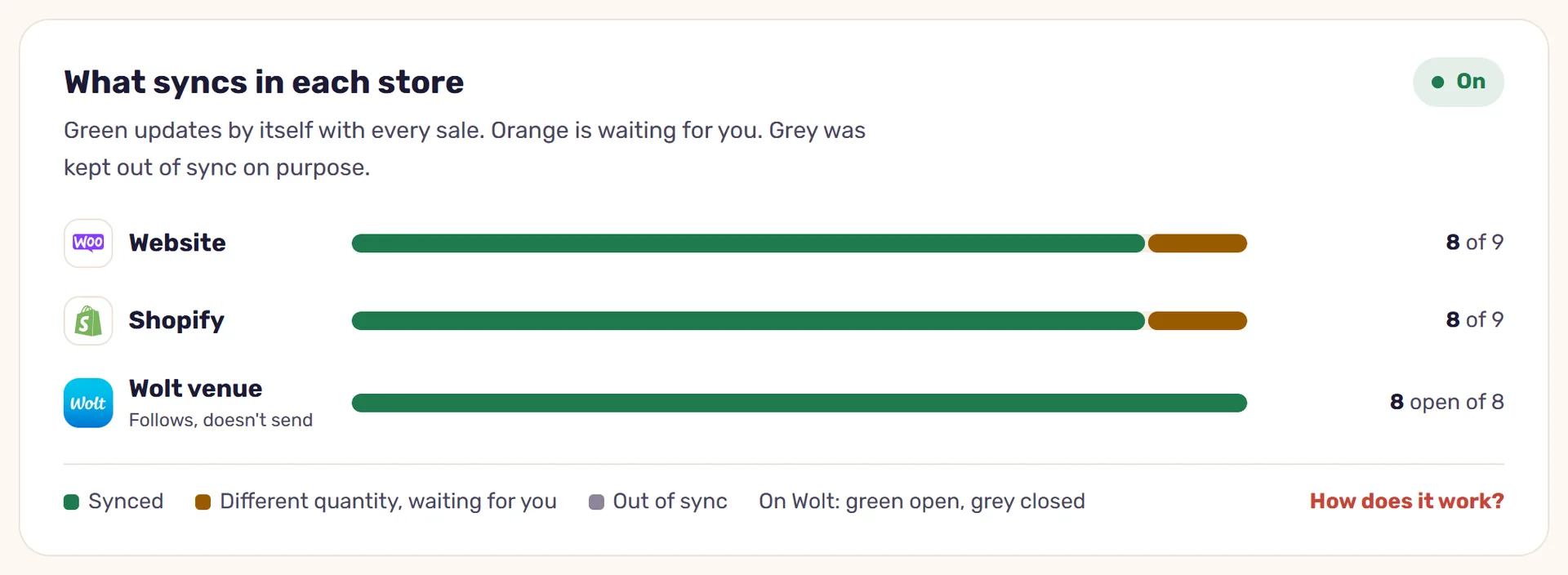
Every update sent to a store is read back from it, and is marked done only when the store returns exactly the quantity we asked for. Each such change is recorded in the activity log: what changed, in which store, and when.
When the stores’ quantities don’t match
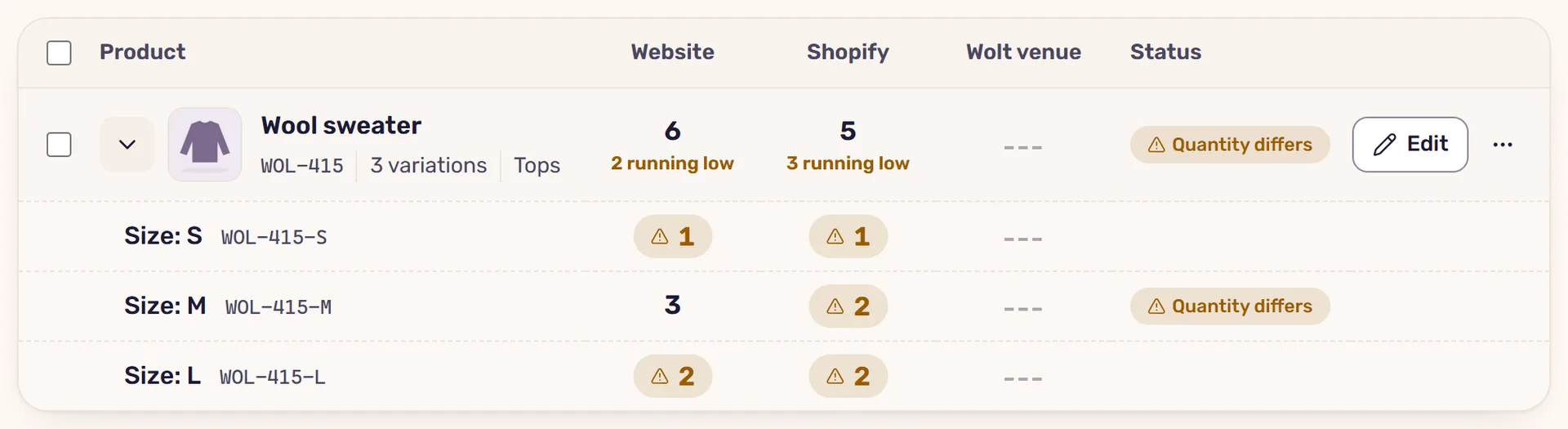
Stores start sharing stock only when they agree on it. If size M has 3 on the website and 2 on Shopify, the system doesn’t decide on its own which number is right. The item is marked “Quantity differs” and stays out of the sync until you set one quantity for it in the stock editor. From then on it syncs like everything else.
Products with sizes and colors
Each variation is an item in its own right, with its own stock. The system joins variations by their SKUs, and without SKUs by their values: size M on the website joins size M on Shopify, even if one store calls the attribute “Size” and the other “מידה”.
A Shopify store with several locations
Shopify lets you keep stock in several warehouses. StoreDuet reads and sets stock at one location, which you choose when you connect the store. An item counted somewhere else, for example at a fulfillment service, is shown as “Elsewhere” and isn’t synced, so that we don’t write a quantity to it that isn’t its own.
What you need to get started
- A WooCommerce store and a Shopify store (or several of each: there’s no limit on the number of stores).
- SKUs on your products, so the system can tell it’s the same product. We explain why that matters, and what to do when they’re missing, in the article on SKUs.
- Quantities that match between the stores on the day you turn the sync on, or a few minutes to settle the ones that don’t.
Read next
· 4 minute read
Overselling: why you sell a product that has run out, and how to prevent it
Overselling happens when a store doesn’t know a product ran out elsewhere. Why, and how StoreDuet closes the gap: sync, a safety buffer and checked updates.
· 4 minute read
SKUs: the basis for managing stock in several stores
Why every product and variation needs a SKU across several stores, what happens when SKUs are missing or don’t match, and how to fill them in with StoreDuet.