

How to connect a Shopify store for stock sync, without a password
· 5 minute read
To sync a Shopify store’s stock with a WooCommerce site or another store, you connect it first. In StoreDuet you do that by approving the connection in Shopify: you give the store’s address, approve it there, and come back. The account’s password is never handed over, and there are no keys to copy.
How to connect
- On the Stores page, click “Connect a store” and choose Shopify.
- In “Store address”, enter the address your store sells at, for example myshop.com. The address that ends with myshopify.com works too.
- Under “How to connect”, leave “Approve inside Shopify” selected and continue.
- The system takes you to the store in Shopify. You approve the connection there with one click, and Shopify sends you back to the Stores page.
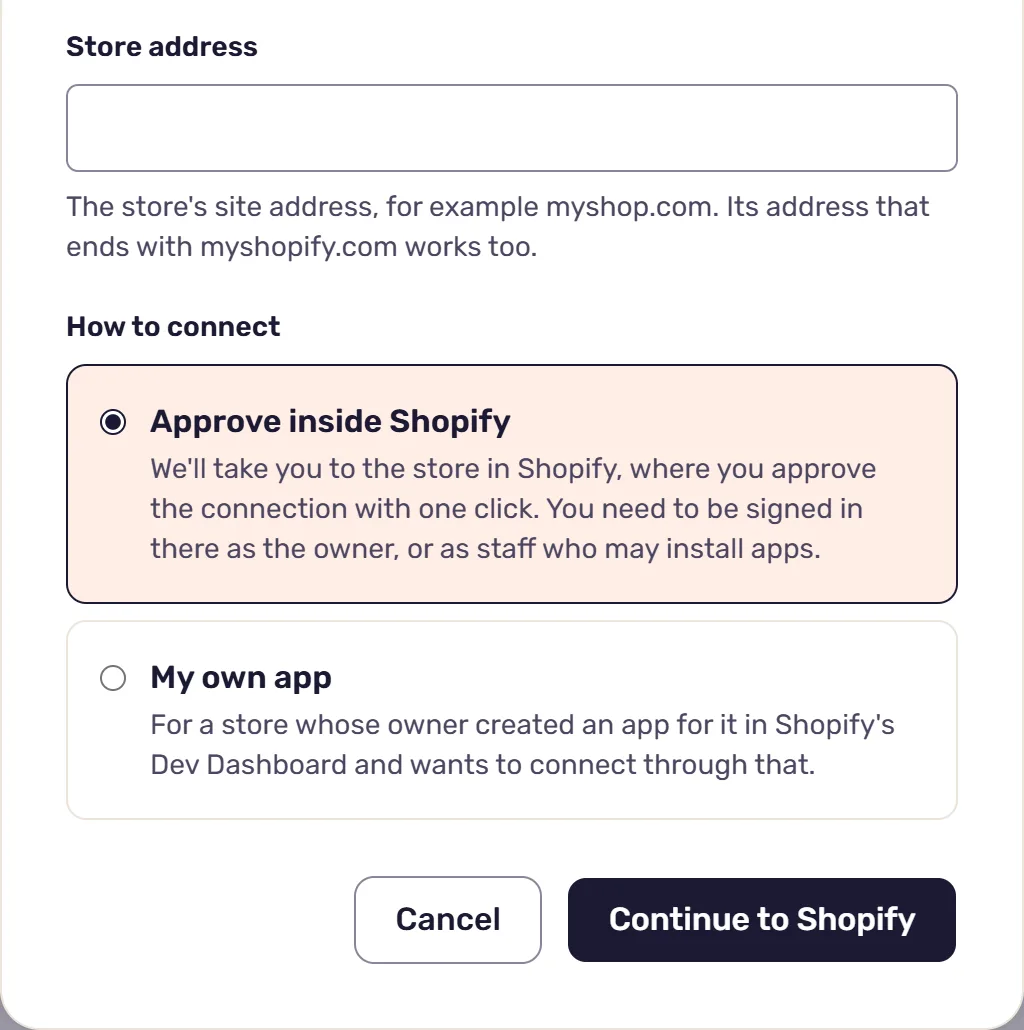
To approve, you need to be signed in to Shopify as the store’s owner, or as staff who may install apps. In StoreDuet, only an owner or admin of the business can connect stores.
You don’t need to look up the store’s internal Shopify address: the system asks the site at the address you entered which Shopify store it is. If the address isn’t recognized, for example on a site built outside Shopify, enter the address that ends with myshopify.com. You’ll find it in the store admin under Settings, then Domains.
No password, and you can disconnect any time
Your Shopify account’s password is never given to the system. The approval lets StoreDuet read and update products and stock in the store, and the system renews its access on its own, so there’s nothing to maintain afterwards.
To disconnect, choose “Disconnect store” in the store’s menu on the Stores page. The system stops reading and updating the store, and the products in the store itself are not deleted. The app stays installed on the store, and you can remove it there under Settings, Apps.
A store with several locations
Shopify lets you keep stock at several locations. StoreDuet reads and sets stock at one of them. A store with a single location has nothing to choose. For a store with several, the Stores page shows “One thing left: choose a location” when you come back from approving: pick the location and click “Connect the store”. Only then is the store connected.
An item whose stock is counted at another of the store’s places, another location or a fulfilment service, shows as “Elsewhere” on the Inventory page. The system doesn’t set a quantity for it or sync it, because its quantity isn’t counted at the location you connected.
What happens after you connect
Right after you connect, the system starts reading the store’s products. Reading changes nothing in the store. When it’s done, the store’s card on the Stores page shows how many products were read and when, and the products appear on the Inventory page.
A product with the same SKU in several stores is joined into one row on its own, with the quantity in each store. What happens when there’s no SKU, or the SKUs don’t match, is in the article on SKUs.
If stock sync is on, an item starts syncing once its quantity is the same in every store. An item whose quantity differs is marked “Quantity differs” and isn’t changed until you set one quantity for it. How the sync works is in the article on syncing stock between WooCommerce and Shopify.
Deleting and orders in Shopify
When you delete a product from a Shopify store with “Delete from the stores” and leave “Delete for good” unchecked, it goes to the store’s archive and is no longer sold. It can be brought back from there.
Once you turn on the Orders page, the Shopify store’s orders are read into it as well. If the app the store is connected through has no access to orders, the Orders page says so for that store, and stock and products keep working as usual.
Connecting again, and another way to connect
A store that’s already connected is connected again the same way: choose “Connect again” in its menu on the Stores page and approve once more in Shopify. When the app is already installed, Shopify sends you straight back without asking. Apart from the renewed access, the store stays as it was, its location included.
If you’ve created an app for the store in Shopify’s Dev Dashboard, you can choose “My own app” and copy its Client ID and Client secret into the window. The window explains how to create them, and what else it takes for the orders to be read too.
Read next
· 4 minute read
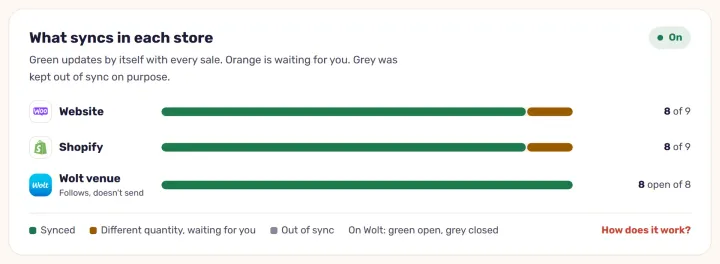
Syncing stock between WooCommerce and Shopify: how it works
What happens when one product sells in two stores, what the sync carries and what it doesn’t, and how StoreDuet keeps one quantity in both within a minute.
· 4 minute read
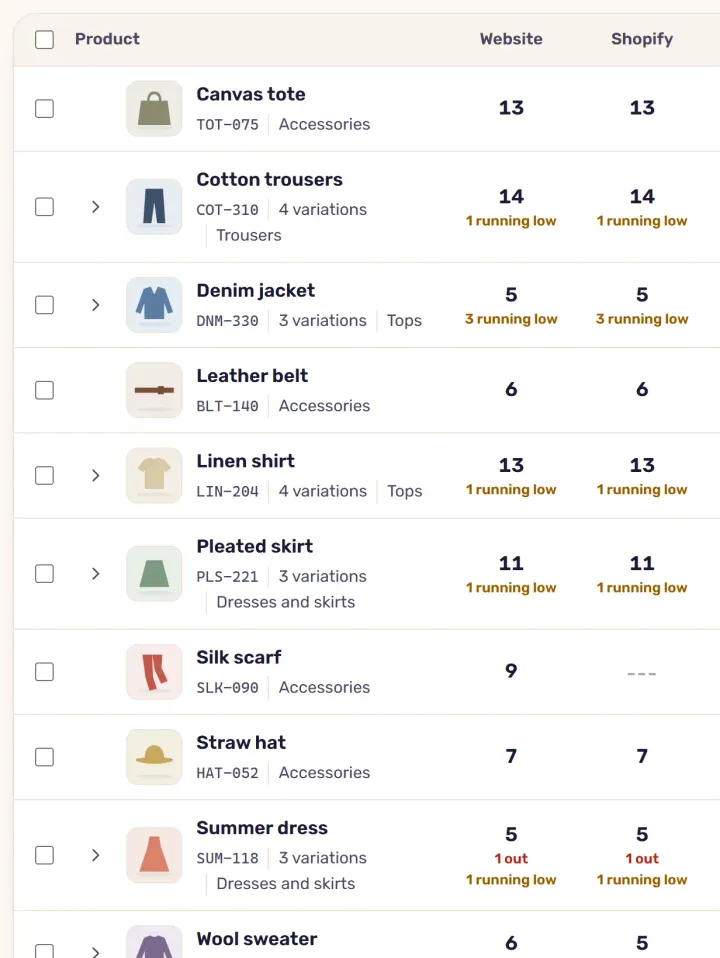
SKUs: the basis for managing stock in several stores
Why every product and variation needs a SKU across several stores, what happens when SKUs are missing or don’t match, and how to fill them in with StoreDuet.