

Manage orders from several stores in one place: WooCommerce, Shopify and Wolt
· 5 minute read
If you sell on a WooCommerce site, in a Shopify store and on a Wolt venue, your orders arrive in three places, and a customer who calls about their order starts a search across three dashboards. The Orders screen brings them all into one list, and you handle them from there too.
First you turn it on, because customers’ details are involved
The Orders screen is off at first, because an order carries the customer’s name, phone, email and address. An owner or an admin turns it on in the screen itself, with “Turn the orders on”.
The first read brings in the orders of the last 60 days. After that the system looks at each store once a minute, and a new order shows up within about a minute. If you don’t want to wait, click “Refresh from the stores”.
Only the business’s own users see customers’ details. “Turn the orders off” deletes every order kept in the system, and nothing changes in the stores themselves. Disconnecting a store also deletes its orders.
One list, the same words for every store
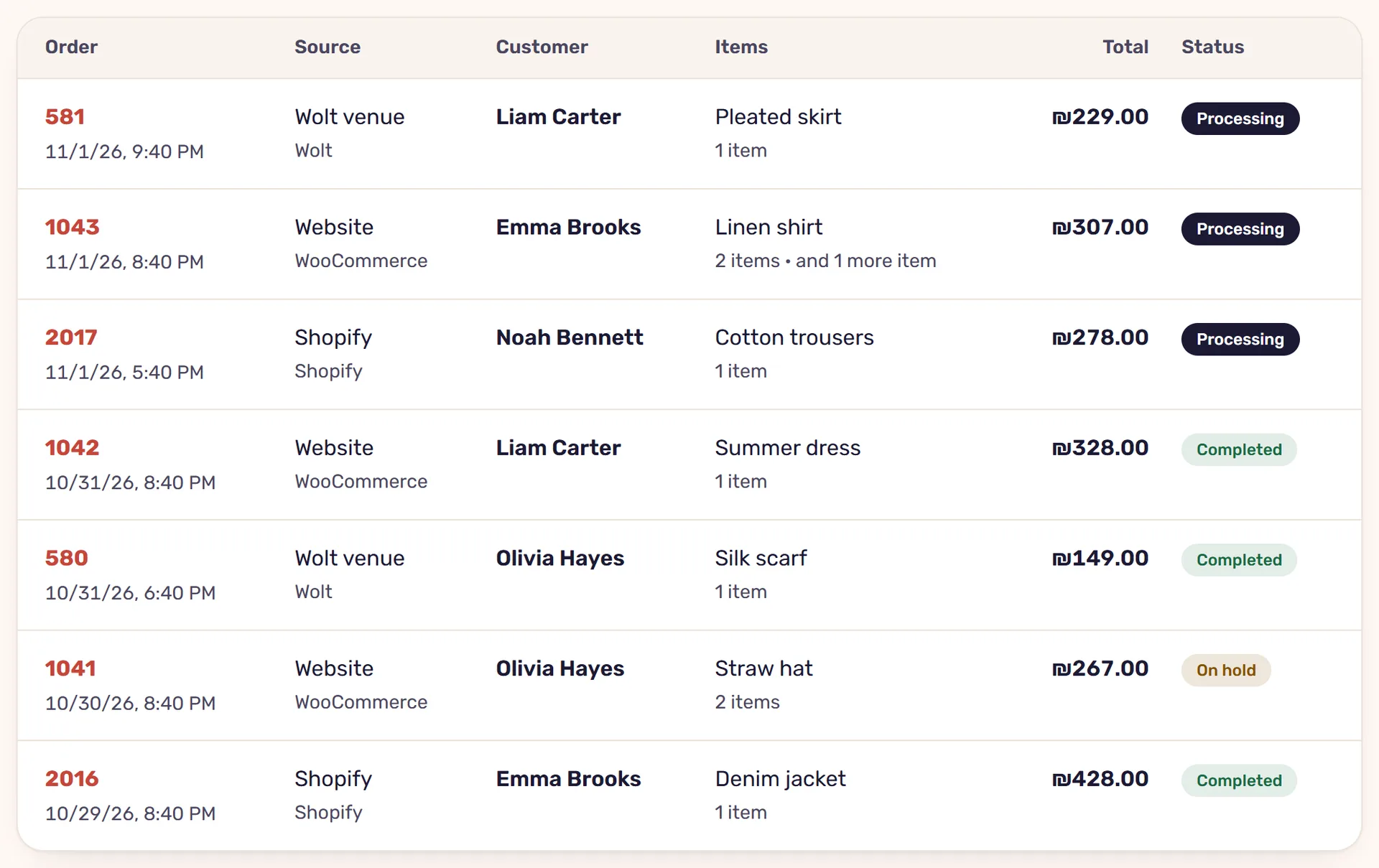
Orders from all your stores appear in the same list, and the “Source” column shows which store each came from. Each kind of store has its own words, so every order gets a status from one set: “Awaiting payment”, “On hold”, “Processing”, “Completed”, “Cancelled”, “Refunded” and “Payment failed”. The store’s own word is kept beside it.
At the top of the screen there are five numbers, all orders and four statuses, and clicking a number lists the orders it counts. Below them you filter by “Source”, “Status” and “Period”, and search by order number, customer, phone or SKU.
Open an order, and it’s read from the store
Clicking an order opens it in full: the customer, the address, what was ordered, the totals and the payment method. At that moment the system reads it from the store again, so you see what the store has now. If the store doesn’t answer, you see what was read the last time, and the screen says so.
Each line of an order is tied to a product in your inventory by the store’s own id for the item that was bought, never by its name. Where there is a tie, the line shows “In the inventory:” with the product’s name. Orders from the website and from Shopify also have “Open in the store”.

A status change checked against the store
In WooCommerce and Shopify orders, you pick a status in “Order status” and click “Update the status”. The change is made in the store, and counts as done only once the system has read the order back and seen that the status changed. If it didn’t change, the screen says so.
In WooCommerce you can set “Awaiting payment”, “On hold”, “Processing”, “Completed” and “Cancelled” from here. “Refunded” and “Payment failed” are set by the store, from what happened to the money. You can also delete an order: without the checkbox it goes to the store’s trash, and with “Delete for good” it’s gone. A deletion, too, counts only once it was checked that the order is no longer in the store.
Anyone in the business can update a status, and deleting is for owners and admins. Every status change and every deletion is recorded in the activity log.
Cancelling, marking as sent and holding in Shopify
In Shopify, where an order stands is made of three things: whether it was cancelled, where its payment stands, and how much of it has been sent. The system works out the status in the list from them, and each status you can set from here is a separate action in the store:
- “Cancelled”: the order is cancelled and its items go back into stock. No money moves; a refund is done in Shopify itself.
- “Completed”: everything not yet sent is marked as sent.
- “On hold”: whatever is not yet sent is put on hold, and “Processing” takes it off hold.
Cancelling and marking as sent happen without a message to the customer, and that an order was paid for is never set from here. Shopify has no trash for orders, and usually allows deleting for good only an order that was cancelled or archived.
For a Shopify store’s orders to be read, the app the store is connected through needs access to orders and to customers’ details. Without it, the Orders screen says that it couldn’t read that store’s orders and why, and stock, sync and products keep working. On the sync itself, see the article on syncing stock between WooCommerce and Shopify.
Wolt orders are updated on the tablet
Orders from your Wolt venue appear in the same list, but they aren’t changed or deleted from here. The status is changed on Wolt’s tablet, and updates here by itself. In the order’s details you also see its stage at Wolt, for example “At Wolt: Being prepared”.
A Wolt order also lowers the stock on your sites, whether or not the Orders screen is on: once it’s accepted the quantity goes down, and if it’s cancelled the units come back. An order waiting to be accepted doesn’t touch the stock. More on this in the article on Wolt and your website.
Read next
· 4 minute read
Selling on Wolt and on your website? How stock stays right in both
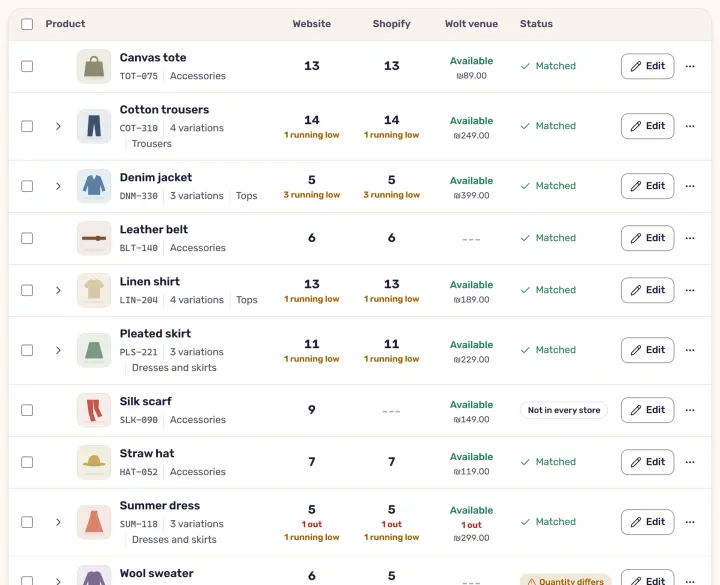
What StoreDuet updates on a Wolt venue and what it doesn’t, how a size sold out on your site closes on Wolt, and how a Wolt order lowers stock on your sites.
· 4 minute read
Syncing stock between WooCommerce and Shopify: how it works
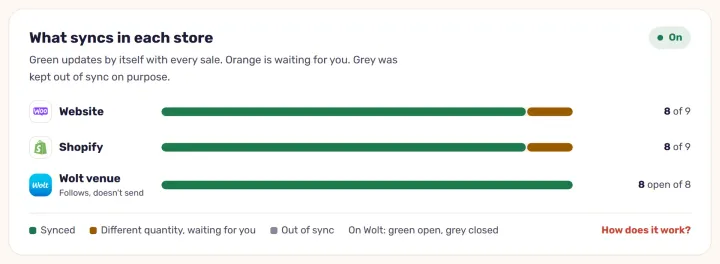
What happens when one product sells in two stores, what the sync carries and what it doesn’t, and how StoreDuet keeps one quantity in both within a minute.