

Copy products from one WooCommerce store to another
· 5 minute read
A second WooCommerce site, new or already running, often needs the same products as the first. Setting each one up again means the name, prices, sizes, SKUs and pictures all over again, product after product. In StoreDuet you tick the products and copy them, and the system tells you first what will happen to each one.
How to start
Copying works between WooCommerce stores: from one WooCommerce site to another. Between stores of different kinds, such as WooCommerce and Shopify, there is no copying. Once at least two WooCommerce stores are connected, an owner or an admin sees the option.
Tick the products on the Inventory screen, up to 100 at a time, and in the bar that appears above the table click “Copy to a store”. In the window that opens, choose “From store” and “To store”.
First you see what will happen to each product
Before anything is sent, the window says what copying will do to each product you chose. This check goes by what the system already knows about the two stores, and changes nothing in them.
- “New to the store”: the product isn’t in the target store, and will be created there as a draft.
- “1 variation missing”, or several: the product is already there, but lacks variations it has in the source store. Only those will be added.
- “Already there in full”: everything is there, and the product won’t change.
- “Same name exists”: the target store has a product of the same name that was never joined with this one. It won’t be copied, so that no duplicate is created.
- “Not in the source store”: the product isn’t in the store you copy from, so there is nothing to copy.
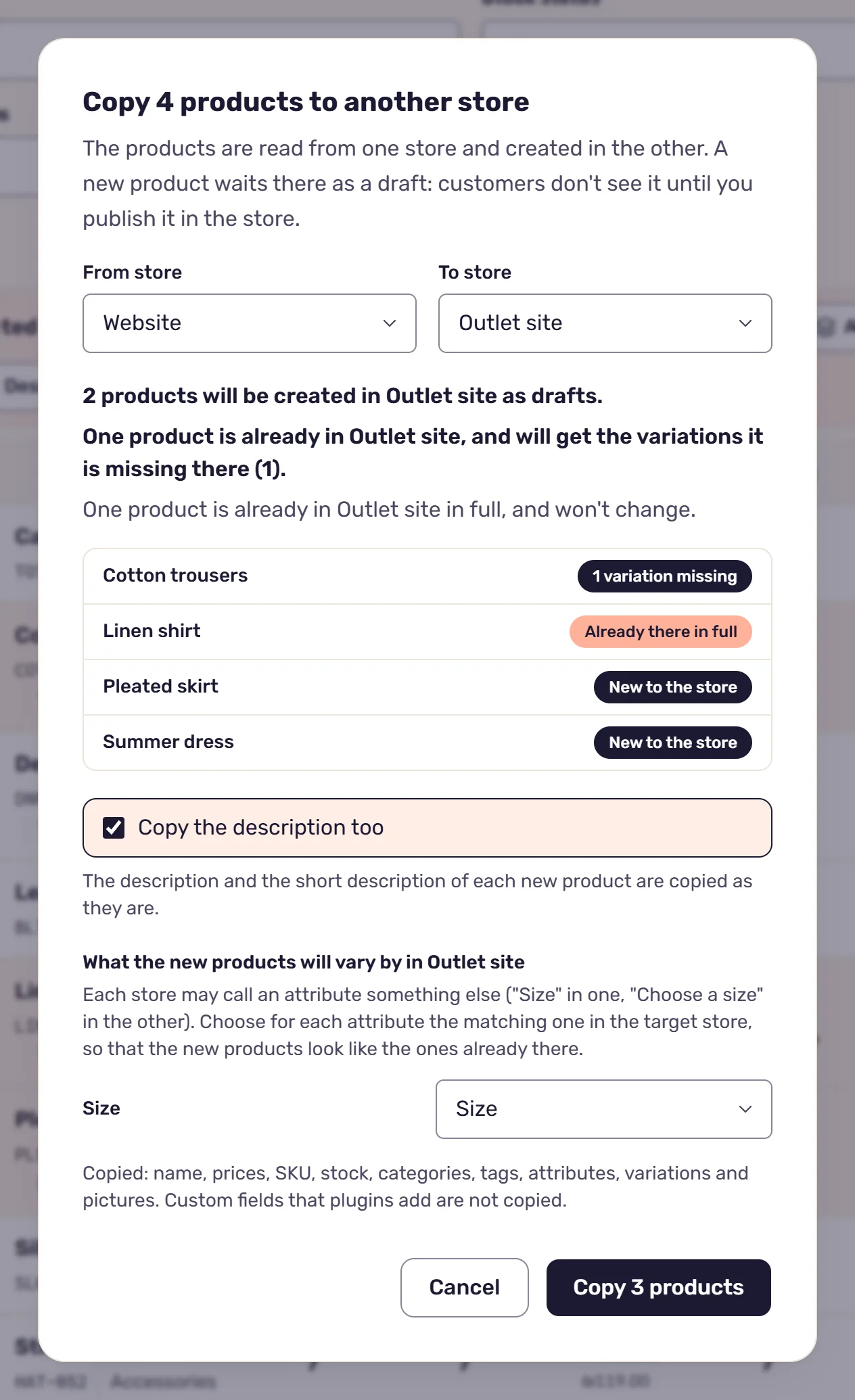
Only the new products and those missing variations are copied, and the button at the bottom says how many.
A new product is created as a draft
A product the target store doesn’t have is created there as a draft, always. Customers don’t see it until you publish it in the store, so you can look it over before it goes live. Once it’s created, the system reads it back from the store and compares it with what it asked for.
With it go the name, the prices and sale price, the SKUs, the stock, the categories, the tags, the attributes, the variations and the pictures. A category goes with its whole path, for example Clothing and Shirts inside it, and whatever the target store lacks is created there. Weight, length, width and height, the tax class and the shipping class go too, as does each variation’s description. A variation’s picture goes to the variation itself. The pictures pass through the system on their way to the other store, and are deleted from it right after.
The description and the short description go along when the “Copy the description too” box is ticked, and it is ticked to begin with. Without it, the product is created without a description, and you can write one of its own in the store, for example when you want different text on each site.
Custom fields that plugins add are not copied. Plugins keep ids there that mean something only in their own store, and in the other store the same id doesn’t mean the same thing. Grouped, external and downloadable products are not copied, and neither is a product with more than 100 pictures.
When each store calls the size something else
On one site the attribute is called “Size”, and on the other “Choose a size”. If the copy brought the first store’s name with it, the second store would end up with two attributes for the same thing.
So when you copy new products with variations and the target store has attributes of its own, the window asks what they will vary by there. For each attribute, choose an existing attribute of the other store, or “A new attribute of this name”. An attribute with the same name in the target store is chosen for you. You can’t go on without a choice in every row, and the next time you copy between the same two stores, in the same browser, the window remembers what was chosen.
A product that already exists is never created twice
A product the target store already has is not created there again. It only gets the variations it lacks, including ones that are out of stock, and their values are added to its attributes. Otherwise the product stays as it is. A variation counts as already there when the target store has a variation with the same SKU, or with the same values, such as size M.
When each store varies the product by a single attribute, even under different names, the variation is recognized by its value and added under the name the other store gives the attribute. When each store varies it by different attributes, nothing is added, and the message on the products page says why.
“Same name exists” is the case where the system doesn’t guess. It may be the same product, or two different products with one name. The window has a link “To the matching screen”, and that’s where you decide: “This is the same product” joins them, and after that, copying it again completes its missing variations. Products with the same SKU are joined on their own, so this mostly happens to products without SKUs. How to fill them in is in the article on SKUs.
After copying: stock and joining
Copying goes on in the background, even if you close the window. The products page shows how each product is getting on, and whether anything failed.
When stock sync is off, the copy gets the quantity the product has in the source store. When it’s on, the copy gets the stock the stores share, not what the source store shows after its own safety buffer. In the target store, if it takes part in the sync, it shows that less its own buffer, so the quantities agree from the first moment. More on the buffer in the article on safety buffers.
On the Inventory screen the copy is joined to the product it was copied from, and they become one product sold in two stores. Usually that happens by SKU, and a product without one is joined directly, since here it is known to be the same product. A product that no store has yet is added to all of them from one form, as the article on adding a product to several stores shows.
Read next
· 4 minute read
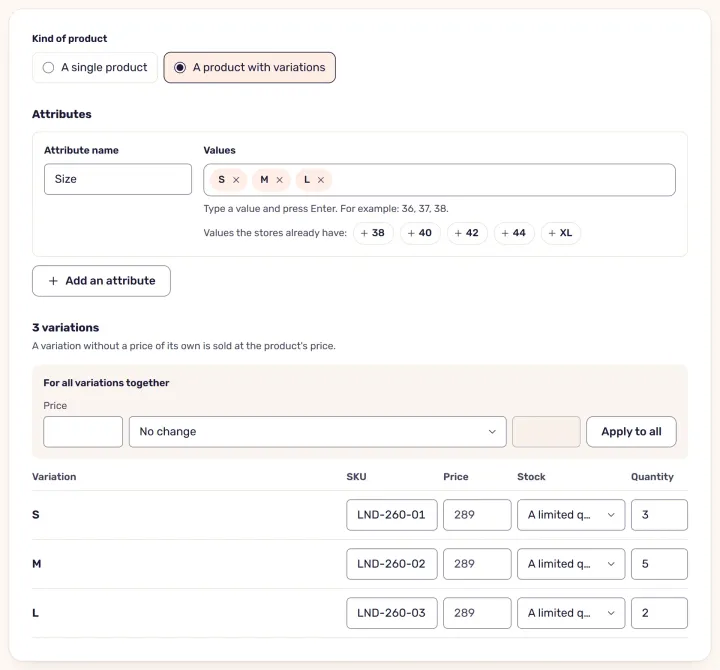
A new product in several stores at once
One form in StoreDuet instead of setting up a product in each store: it goes to the chosen stores, is checked in each, and is published only when it’s right.
· 4 minute read
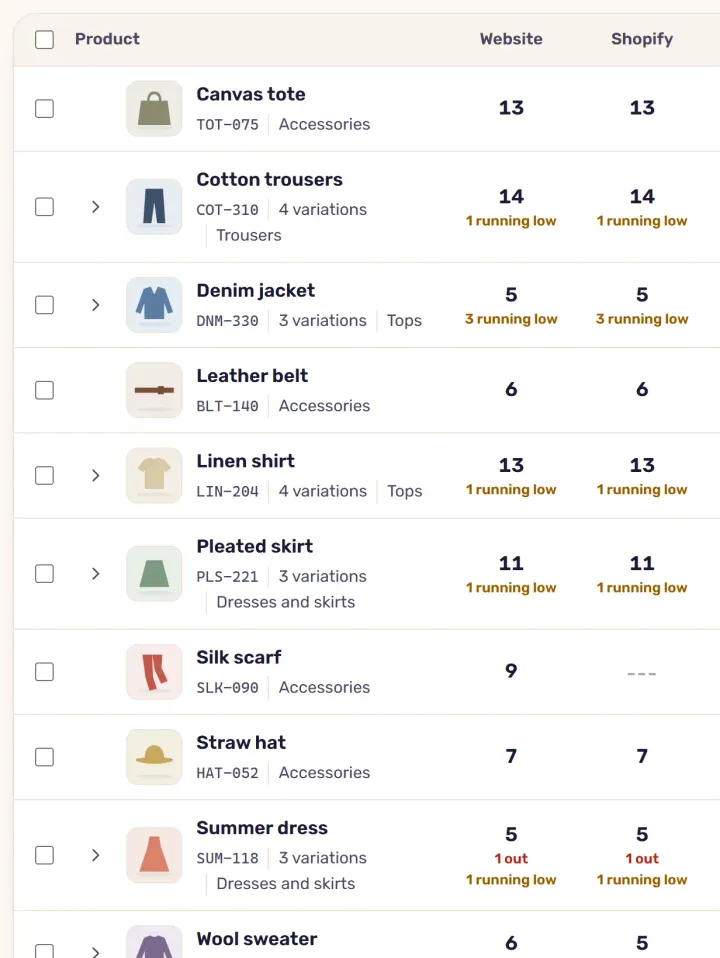
SKUs: the basis for managing stock in several stores
Why every product and variation needs a SKU across several stores, what happens when SKUs are missing or don’t match, and how to fill them in with StoreDuet.