

Stock by size and color: syncing variations across stores
· 4 minute read
A shirt in four sizes is four items in your stock. Each size has its own quantity in each store, and size M can sell out on your website while Shopify still has two left. To keep stock right, the system has to know that size M on the website is the same size M on Shopify, and follow each size on its own.
Each size is an item of its own
In StoreDuet, every variation is an item with its own stock in each store: a size, a color, or a combination of them, such as black in size 38. The sync works size by size. A sale of size 40 on the website lowers size 40 on Shopify, and the other sizes stay as they are. Problems come size by size too, and one size can differ between the stores while all the others are fine.
How the system knows it’s the same size
First the product is joined across the stores, by its own SKU or by its variations’ SKUs. Then each variation is joined to its counterpart: by SKU, and without a SKU, by value. 38 on the website joins 38 on Shopify, even when one store calls the attribute “Size” and the other “מידה”.
Joining by value works when the product varies by one attribute. On a product that varies by both size and color, the attribute names have to be the same in both stores; otherwise the variations show up in the inventory as separate items. And two variations with different SKUs won’t join by value, even if both are 38. The same SKU for each variation in every store settles all of this, as we wrote in the article on SKUs.
On the Inventory screen: each size’s quantity in each store
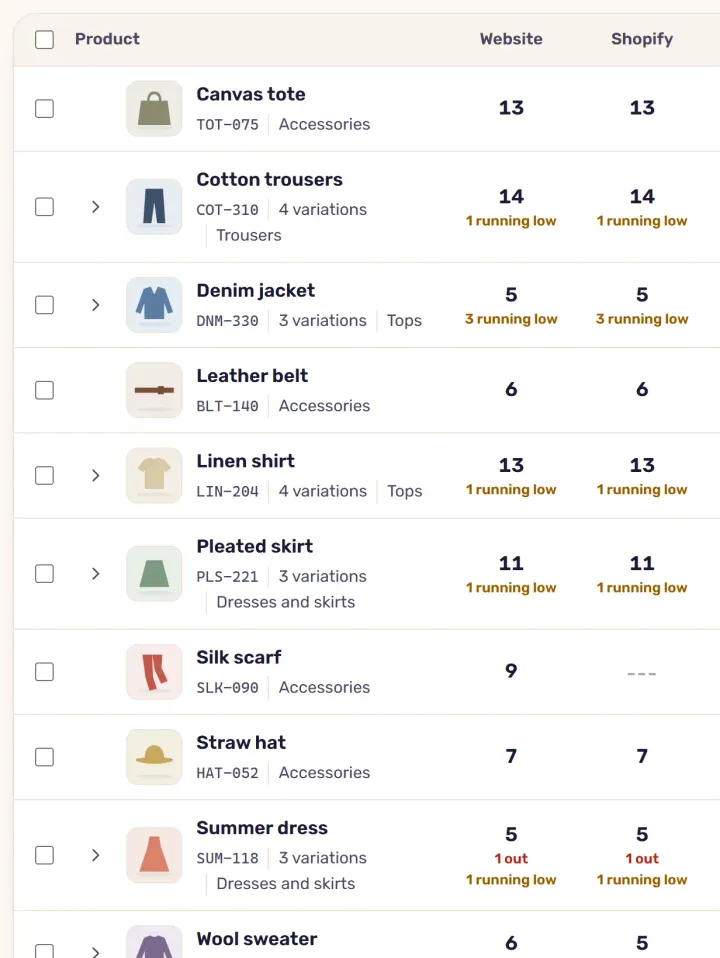
On the Inventory screen, a product with sizes takes one row, with the total units on each site and how many sizes are out or running low. Clicking the arrow next to the product’s name opens its sizes, each in its own row with its quantity in each store.
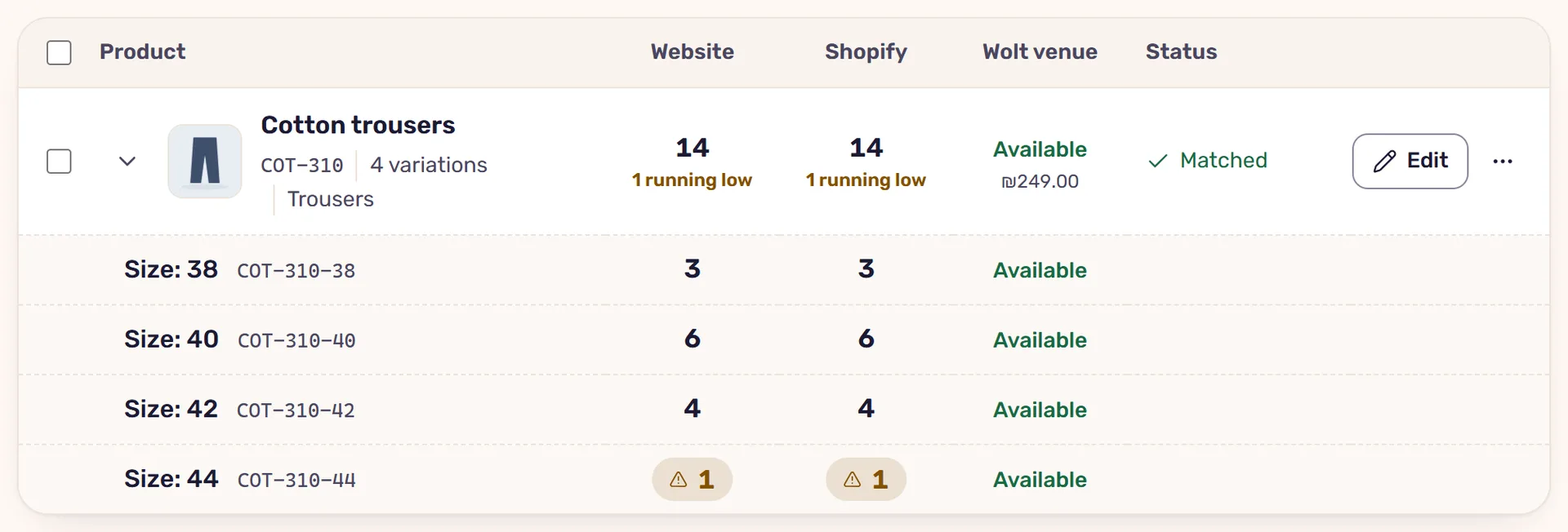
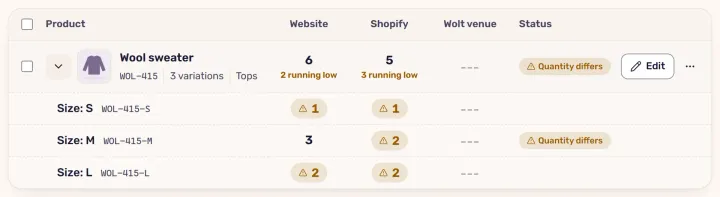
A size missing from one of the stores shows a dashed line there, and the product is marked “Not in every store”. A size whose quantity differs between the stores is marked “Quantity differs”, and so is the product’s row. The sync leaves that size alone until you set one quantity for it, and the other sizes keep syncing. A wrong quantity in a single size is enough to sell something that’s already gone; the other causes of overselling are in the article on overselling.
Setting each size’s quantity
Click “Edit” next to the product. The “Stock” part has a row for each size: next to “Now” you see what each store has of it, and you choose what to set: “Limited quantity” with a number, “No limit” or “Out of stock”. A size with a gap starts at “No change”, and you decide what’s right.
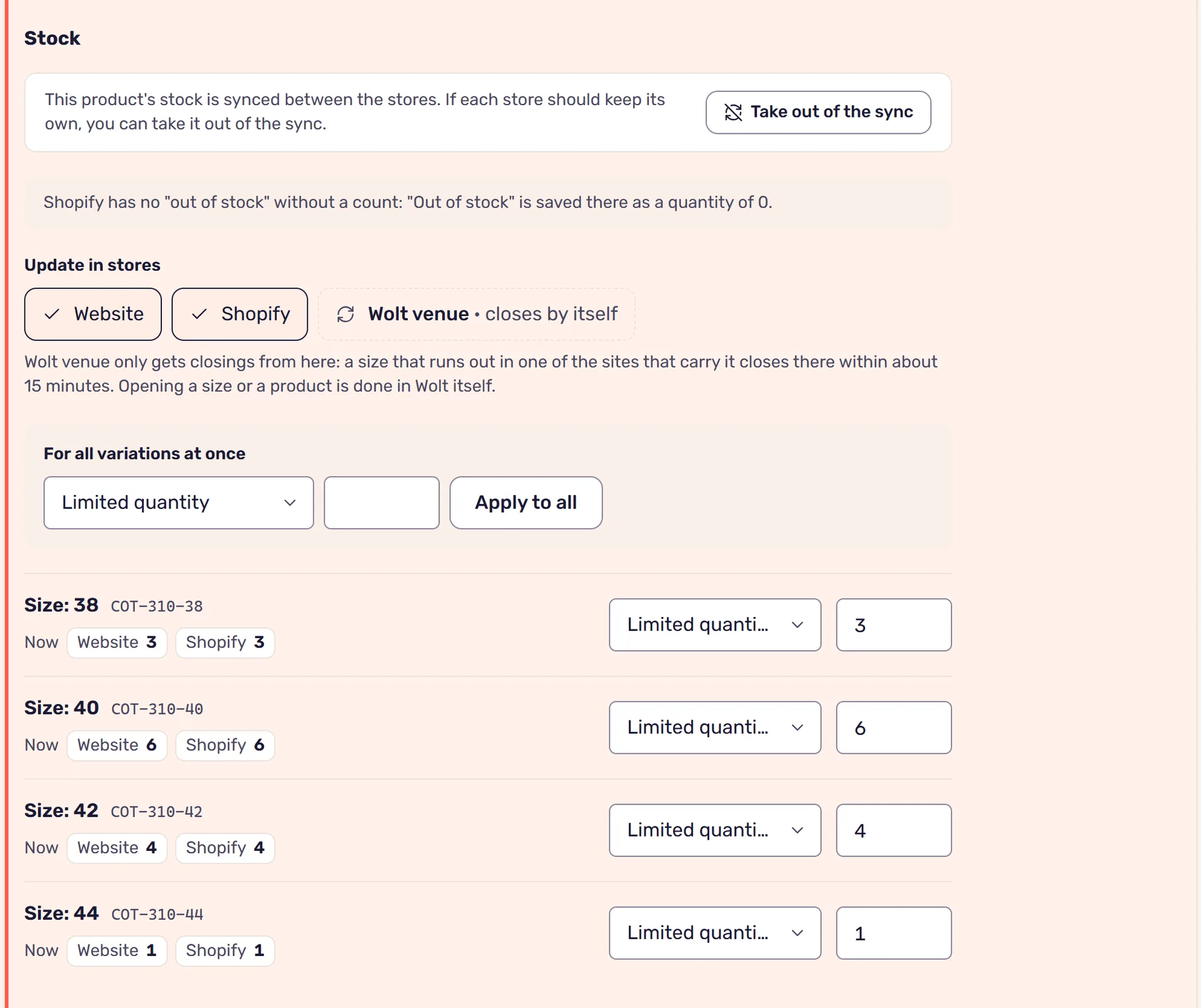
“Save and update the stores” sends only what changed, and each store is read again to make sure the quantity took. While sync is on, the quantity is set in every store.
Shopify has no “out of stock” without a count, so “Out of stock” is saved there as a quantity of 0. On the Inventory screen, out of stock on the website and 0 on Shopify are the same thing, and don’t count as a gap.
In WooCommerce, stock can be managed on the whole product instead of on each variation. Then the editor says “The quantity is shared by all of the product's variations, and is edited in the store itself”, and StoreDuet doesn’t write a quantity to those variations or sync them. For each size to sync, manage stock per variation in the store.
A new size for a product you already sell
In the editor’s “Variations” part, type the new value, for example 42, and choose the stores, the price and the “Starting stock”. The stock is the same in every store you tick, so the size takes part in the sync from the start. Each new variation gets the next SKU in the product’s series, for example TS-100-06 after TS-100-05.
A value one of the stores already has is marked “some stores have it already”, and the stores that lack it get it with the same SKU. That’s how you fill in a size missing from one store. Variations are added from here in WooCommerce and Shopify stores.
Sizes on Wolt
Wolt has no quantities: each size is an option on the menu, open or closed, and the system identifies it by the variation’s SKU on your site. In the venue’s column on the Inventory screen, each size is marked “Available” or “Out”, and a size that sells out on your sites closes on Wolt within about 15 minutes. A new size is added on Wolt itself, and the system recognizes it by its SKU the next time it reads the menu. How a size that’s back in stock opens again is in the article on Wolt and your website.
Read next
· 4 minute read
SKUs: the basis for managing stock in several stores
Why every product and variation needs a SKU across several stores, what happens when SKUs are missing or don’t match, and how to fill them in with StoreDuet.
· 4 minute read
Overselling: why you sell a product that has run out, and how to prevent it
Overselling happens when a store doesn’t know a product ran out elsewhere. Why, and how StoreDuet closes the gap: sync, a safety buffer and checked updates.